
There was a time when I preached folders bad, metadata good when it came to SharePoint….but time has passed and many users are just too busy to tag files and are too attached to folders. A client asked me to build a way to filter folders based on a list, huh?… you can’t filter folders, or can you? After some trial and error and googling I found a (fairly) simple way to automate metadata tagging but based on folder properties. Here is a scenario, the client has many projects and needs to track project metadata in a list but primarily works with files, so for each project I have created a Power Automate Flow to create a set of corresponding folders in a Projects document library. If the user wishes to work on a project then they select a project from the list webpart on a page that has a dynamic connection with the Project library to filter out just that project’s files. The trick here was in getting the Project name auto-tagged for all folders and files in that project (Oh, if Microsoft had only modernized the Document Set content type…I’m not holding my breath for that one). This brings us to the solution, basically you need another Flow to set a metadata field in the project library that I have astutely called ‘Filter’. This requires pulling back the Full Path property and parsing out the Project name.
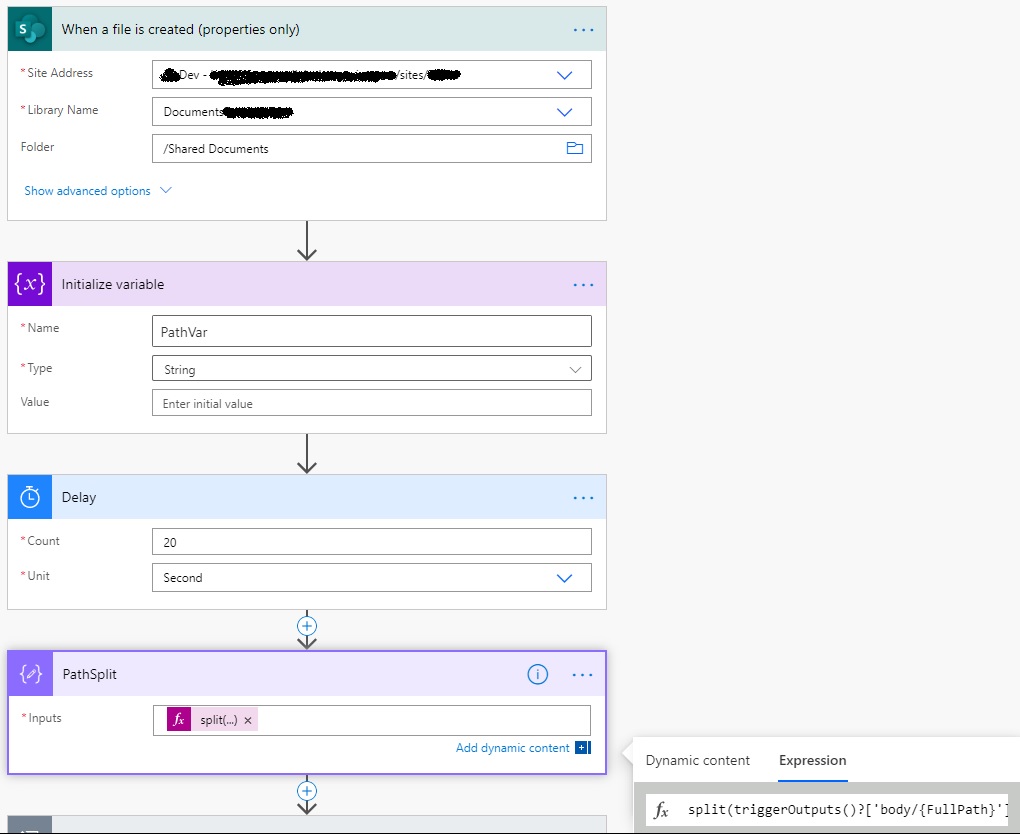
Start with a When a file is created (properties only) trigger (works with folders too) and then create a string variable. For some reason I added a short delay to maybe give SharePoint a bit of time to create the file, you may not need this.
The PathSplit compose control expression is split(triggerOutputs()?[‘body/{FullPath}’],’/’).
The next part is a bit funky, you have to iterate through the separate pieces of the path using an Apply to each control and for a condition use the Current item in this control with a is not equal to a blank. In the yes branch add another compose which pulls the second piece of the full path. This works as follows: [0] is the library name, [1] is first folder level, and so on.

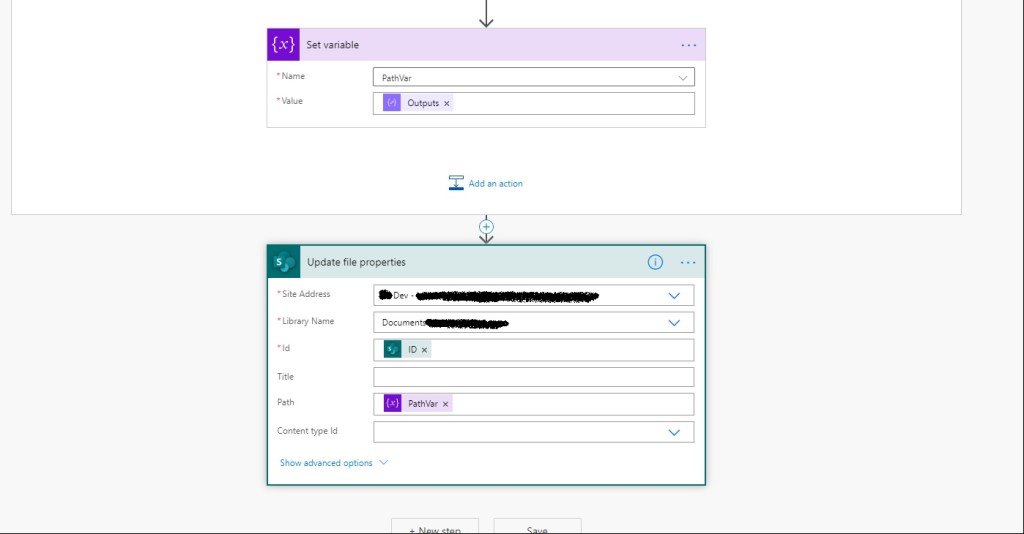
The next step is to simply set the PathVar variable and then update the file properties with PathVar.
Well I hope this has helped. Rock on Folders!!
 Stratacollab Consulting